API and AI System Configuration Guide
Posted on 2026-01-26 Updated on 2026-01-26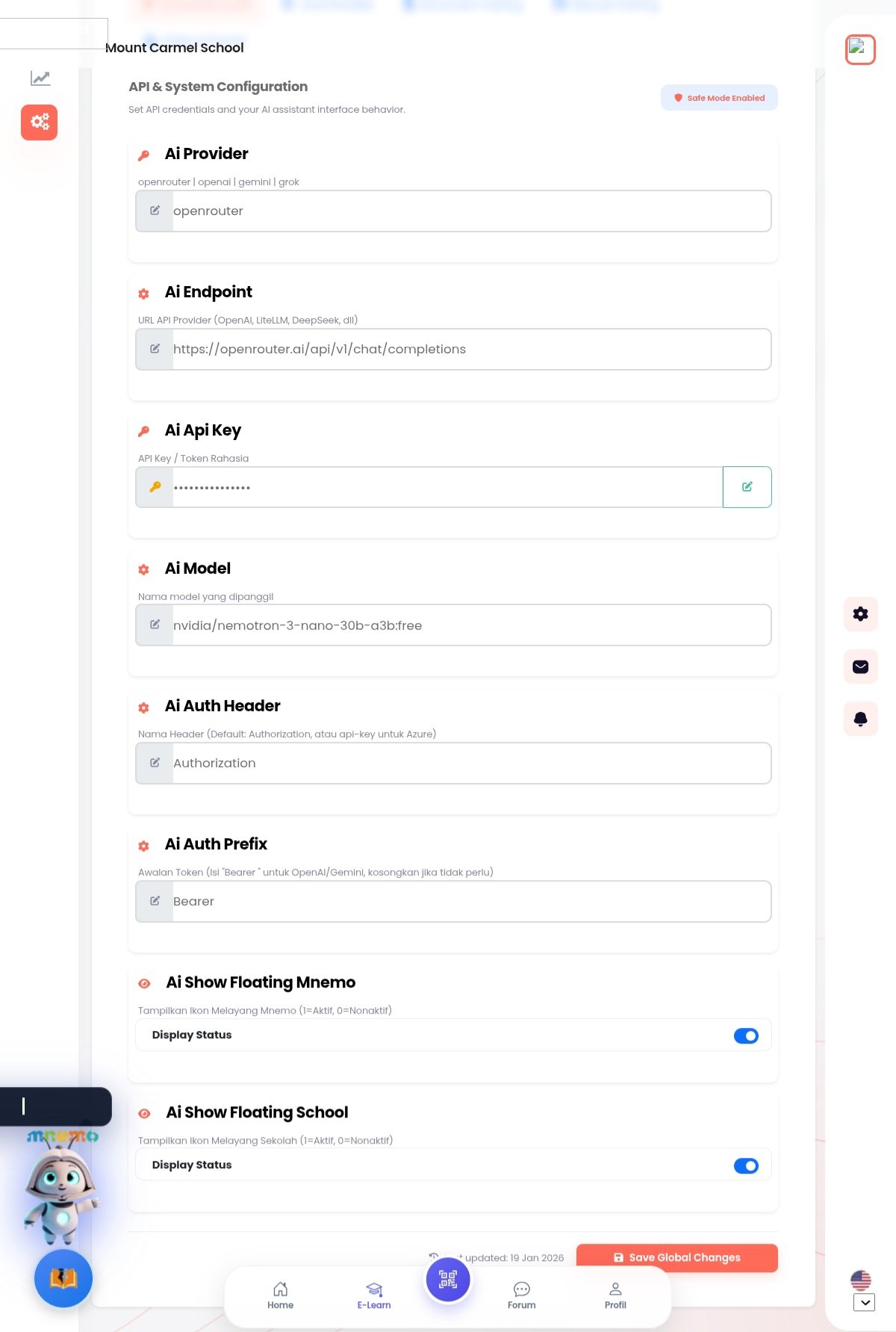 The API & System Configuration page allows administrators to establish the connection between the Mount Carmel School platform and Artificial Intelligence (AI) providers.
Configuration Steps:
- Ai Provider: Enter the name of the AI service provider (e.g., openrouter, openai, gemini, or groq).
- Ai Endpoint: Enter the API base URL. For OpenRouter, the standard endpoint is https://openrouter.ai/api/v1/chat/completions.
- Ai Api Key: Input the secret token/key generated from your provider's dashboard.
- Ai Model: Specify the exact model string to be called (e.g., nvidia/nemotron-3-nano-30b-a3b:free).
- Ai Auth Header & Prefix: Default settings usually use Authorization as the header and Bearer as the prefix.
Display Settings:
You can also manage the visibility of assistant icons on the user interface:
- Ai Show Floating Mnemo: Toggle the visibility of the Mnemo floating character icon.
- Ai Show Floating School: Toggle the visibility of the school-specific floating icon.
Always remember to click Save Global Changes to apply your configuration.
Found this article helpful?
[ 0 Out of 0 Found Helpful ]